

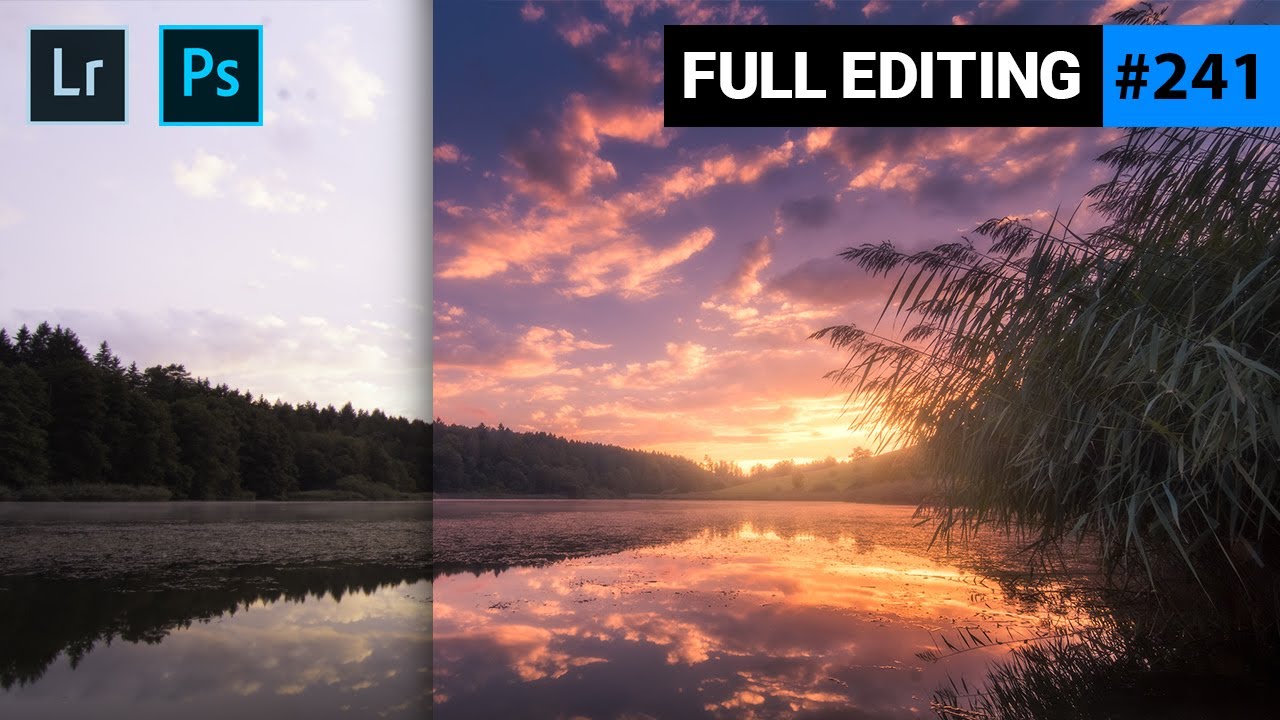
 In this quickedit video I‘m creating a vibrant, warm #HDR landscape photo using Adobe #Lightroom (and a little bit of Adobe #Photoshop) for the post processing.
 If you'd like to support me, Patreon:
Instagram:
Facebook:
My goal for this photo was to create a vibrant image with lots of warm tones and a dark, blue-ish sky. Besides that, I wanted to add a subtle, dreamy look over the whole image. I used both Lightroom and Photoshop (plus the Nik Collection plug in), but the editing could have been done using only Adobe Lightroom in this case.
1. Basic Adjustments
As this is an HDR photo, I started by merging the HDR in Lightroom. After that I activated the lens corrections to fic chromatic aberration and lens distortion. Then, I switched the camera profile to Adobe Standard, which already helps to restore details from the shadows. To get the desired colours with warm clouds and blue sky I dropped the white balance temperature carefully.
Now to balance the brightness of the photo I first dropped the highlights to restore details from the bright spots. Then, I carefully increased the exposure without overexposing anything and increased the shadows for more details in the darker areas. As those adjustments make the photo very flat, I boosted the contrast and clarity a bit. Finally, I added some vibrance for more saturation.
2. Local Adjustments
I started by applying a graduated filter to the sky and dropped the exposure and increased the contrast to make the sky darker and separate the clouds from the blue sky. Another graduated filter was added over the water in the foreground. Here I wanted to boost the reflection by increasing the clarity.
To further darken the sky and the foreground I added a big radial filter over the centre and dropped the exposure outside of this filter. Then, I added some subtle glow over the bright spot in the centre by adding a radial filter and increasing the blacks carefully.
3. Colour grading
I used split toning to enhance the sunset colours by adding a warm tone to the highlights and a cold tone to the shadows. Then I switched to the calibration tab all the way down in Lightroom and dropped the green and blue primary hues and boosted their saturation slightly.
4. Photoshop
As said earlier this could have been done completely in Lightroom, but I decided to use Photoshop for more control. Now first I got rid of the sensor spots in the sky by brushing over them with the spot healing brush. Then to apply the dreamy look I used the Nik Collection plug in and added the classical soft-focus filter.
![4|7台灣539今彩,39彩[TAIWAN LOTTERY 539 SURELY WIN]](https://lh3.googleusercontent.com/blogger_img_proxy/AEn0k_uOotITL71aJT5eOmqtfphnJSl2ODhZhRRm_Ukml1M9-X0vRM8oqZe4bMMoNV9ixLB9Qix_opqYaxXq0UcN7_CO32OZkieh-3AqiO1Y4zDDQUkD=w680)


0 Comments